Recipes
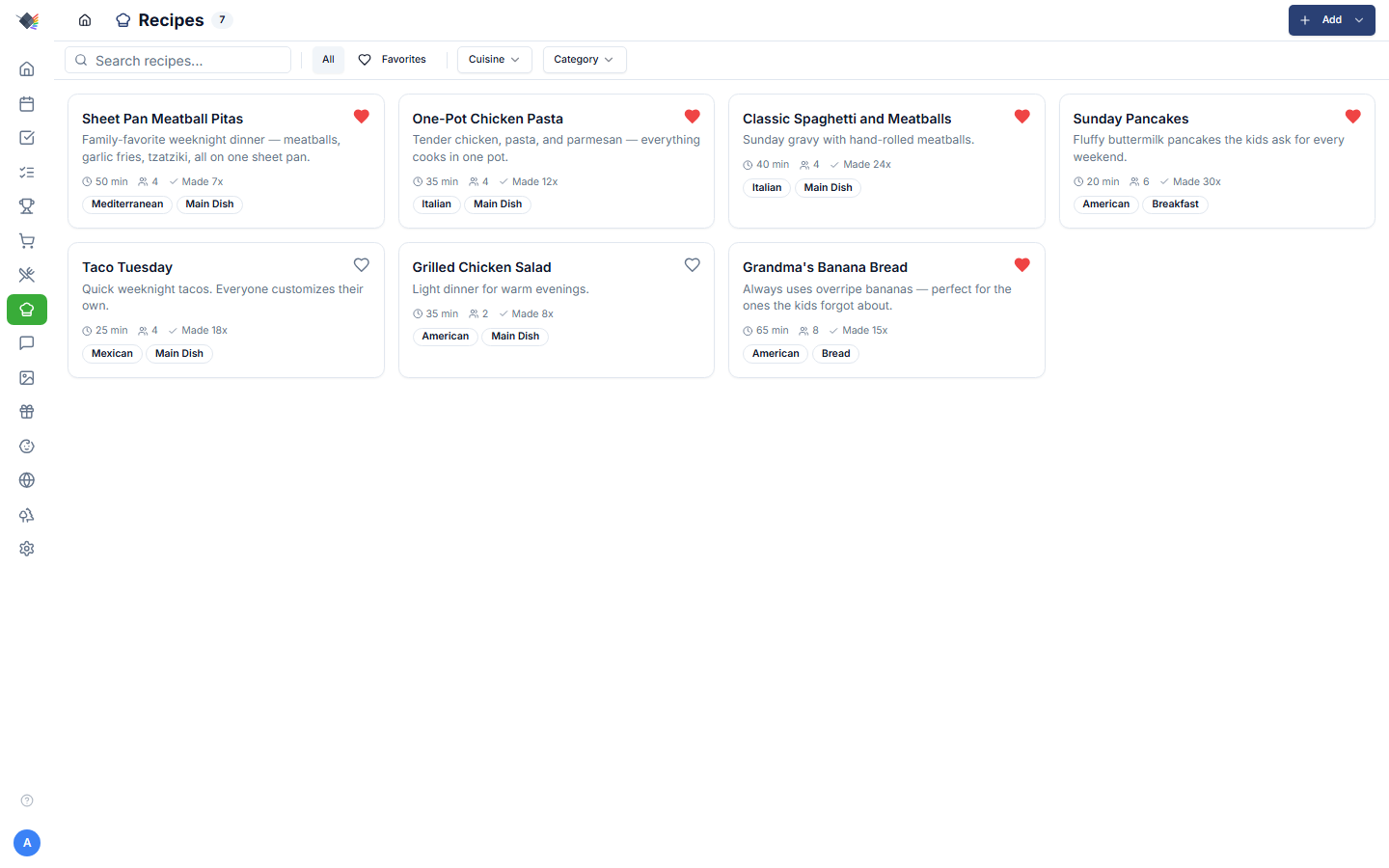
Browse, import (URL, Paprika, paste-text), photograph, scale, and cook recipes, designed for a large kitchen screen so you don't have to keep unlocking your phone while your hands are covered in flour.
What's in a recipe
Each recipe has:
- Name (required)
- Description
- Ingredients: structured as an array of
{ text }or{ heading }entries. Headings render bolded; text entries are the actual ingredients. - Instructions: plain text, line-breaks become step separators.
- Prep time + cook time (minutes)
- Servings
- Cuisine (Italian, Mexican, Thai, etc.)
- Category (Main Dish, Dessert, Breakfast, Bread, etc.)
- Tags: free-form (
weeknight,kid-friendly,vegetarian,sheet-pan). - Source URL: optional link back to the original.
- Image: uploaded photo OR remote URL.
- Rating (1-5 stars)
- Notes
- Favorite boolean
- Times made counter (auto-increments when a meal linked to this recipe is marked cooked)
- Last made timestamp
Importing recipes
Four methods cover ~95% of inputs, plus a fifth for syncing from an existing recipe manager:
URL import
Recipes → Add → Import from URL.
Paste a recipe URL. Prism parses schema.org Recipe JSON-LD (the standard structured-data format that most major recipe sites publish for SEO). Works with AllRecipes, NYT Cooking, Food Network, Bon Appétit, Serious Eats, Smitten Kitchen, and ~80% of indexed recipe sites.
Extracts: name, ingredients, instructions, prep/cook times, servings, image URL, cuisine, category.
If the site doesn't publish JSON-LD, the import fails gracefully. Fall back to paste-text or manual entry.
Paprika import
Recipes → Add → Import from Paprika.
For users migrating from Paprika. Export your Paprika library as HTML, paste into the Prism import dialog, parsed and added in bulk. HTML payload capped at 5 MB to prevent memory exhaustion.
Paste recipe text (OCR-friendly)
Recipes → Add → Paste recipe text.
The killer feature for physical recipe cards. Workflow:
- Take a photo of the recipe card with iOS Live Text (or Google Lens on Android).
- "Select all → Copy" the recognized text.
- Open Prism on your phone (or wherever you keep your laptop), paste into the modal.
- A heuristic parser splits the dump into title, ingredients, instructions, prep/cook time, and servings. Preserves section headings inside ingredients.
What the parser handles:
- Title casing: applies AP-style title case (
a / an / the / and / or / for / of / withstay lowercase mid-title; everything else capitalized). - Section markers:
Ingredients:,Instructions:,Method:,Directions:,For the X:headers. - Sub-section headings inside ingredients:
Fries:,Meatballs:,Sauce:get stored as{ heading }entries and render bolded in the detail view. - "Step N:" prefixes: split as instruction steps.
- Comma modifiers in ingredients:
1 onion, diced and sautéedis preserved as-is. " or "alternatives:1 tsp dried oregano or 1 tbsp fresh oreganopreserved.- Parentheticals:
(about 4 cups)preserved. - Inline step markers:
1. Preheat oven. 2. Mix dry ingredients.gets line-broken. - Times:
Prep: 15 min,Cook: 30 min,Total: 45 min,Servings: 4extracted.
Pre-fills the same form the manual-entry modal uses, so you can review + tweak before saving.
Manual entry
The fallback. Recipes → Add → Create manually. Full form for every field. Use the same { heading } syntax in the ingredients textarea (Fries: on its own line) to get bolded section headings in the detail view.
Sync from Tandoor / Mealie
Recipes → Add → Sync recipes (Tandoor / Mealie)…
If you already keep your recipes in Tandoor or Mealie, connect the server with its base URL and a read-only API token to pull recipes in.
- Sync runs a review-and-approve diff: adds and updates are pre-selected, and removals are opt-in (with a mass-delete guard so a misconfigured source can't wipe your library).
- Re-syncing is idempotent: recipes already imported are matched and updated in place rather than duplicated.
Per-recipe photo upload
Each recipe can carry its own image. In the recipe form:
- Upload from device: opens the native photo picker. On iOS, shows the standard sheet (camera / library / files); doesn't force the camera (
capture="environment"was intentionally removed). - Remote URL: paste a URL to use it directly.
- Remove: clears the photo.
Uploaded photos go through a sharp pipeline:
- Auto-rotate from EXIF orientation.
- Resize to max 1200×1200 (preserves aspect ratio).
- Re-encode as JPEG, quality 85.
- Magic-byte validated (rejects non-image uploads).
- ≤10 MB cap.
Stored at data/recipe-images/<recipeId>.jpg. Served via GET /api/recipes/<id>/image. Rate-limited.
The image appears in the recipe card on the gallery view and at the top of the detail modal.
Browsing + filtering
The Recipes page shows a grid of recipe cards with image, name, cuisine, category, and cook time. Heart icon flags favorites.
Filters:
- Search: case-insensitive match across name, description, cuisine, and category.
- Cuisine dropdown.
- Category dropdown.
- Favorites only toggle.
- Clear filters button.
Click any card to open the detail modal.
Recipe detail modal
Click a recipe card to open the detail view. Features:
Header
- Recipe name, cuisine + category badges, prep/cook time.
- Favorite toggle (heart).
- Maximize: expand to a larger modal for a wall display.
Servings + scaling
The servings line shows current servings with +/- buttons to adjust by 1. Below them are five quick-scale pills:
- ½× / 1× / 2× / 3× / 4×
Tap any pill to instantly multiply the original servings by that factor. ½× rounds up to the nearest whole serving so a 3-serving recipe scales to 2, not 1.5. The active multiplier highlights so you know what you're seeing.
Ingredient quantities auto-recalculate. Smart fractions: scaled amounts that hit common fractions display as fractions (rendered as ASCII: 1/4, 1/3, 1/2, 2/3, 3/4); otherwise as numbers rounded to two decimal places.
Ingredients
- Section headings render bolded.
- Tap an ingredient row to strikethrough, useful while cooking ("got this one in the bowl").
- Strikethroughs reset when you close the modal.
- Scaled quantities are reflected in the displayed text.
Instructions
- Step-by-step, one line per step.
- Line breaks preserved from the source.
whitespace-pre-wraprendering: long steps wrap cleanly.
Add to shopping list
- Add to Shopping List dropdown: pick which list to send the ingredients to.
- Active scaling applies: if you're viewing the recipe at 2×, the shopping items go in at 2× quantities.
- Section headings are filtered out automatically (they're visual grouping, not items to buy).
Notes + URL
- Notes field renders below instructions.
- "View original recipe" link if the recipe has a source URL.
Meal integration
Recipes link to meals on the Meals weekly planner:
- In the Add/Edit Meal modal, the Recipe picker is a searchable dropdown.
- Selecting a recipe auto-fills: meal name, description, prep time, cook time, recipe URL.
- Marking a meal as cooked increments the linked recipe's
timesMadecounter and updateslastMadeAt.
You can also schedule straight from a recipe: the detail modal has an inline Add to Meal Plan mini-calendar. Pick a day on the 2-week grid, choose a meal type (Breakfast / Lunch / Dinner / Snack, defaults to Dinner), and tap Add to Plan to drop the recipe onto the meal planner.
Each recipe card shows a Made N× badge once it's been cooked, so you can eyeball what's in rotation vs. what's been gathering dust.
Print + share (planned)
Currently the detail modal is the only "share": you can show someone the screen or save the page URL. A dedicated print stylesheet and a shareable read-only link are on the roadmap but not shipped.
Troubleshooting
URL import returns "no schema.org Recipe data"
The site doesn't publish structured data. Falls back to plain text scraping in some cases, but most often you'll need to use paste-text instead.
Paste import got the title wrong (no caps / weird caps)
The title-case heuristic uses a stop-words list (a, an, the, and, or, for, of, with, in, on, at, to, by). Edit the title manually in the form before saving.
Paste import didn't split into steps
The parser looks for \d+\.\s (numbered steps) or Step N: prefixes. Bullet-point instructions without numbers fall through to a single text block. Re-paste with explicit 1., 2., 3. numbering or manually break into steps in the form.
Recipe scaling rounded oddly
Smart fractions only kick in for ¼, ⅓, ½, ⅔, ¾ (shown as ASCII: 1/4, 1/3, 1/2, 2/3, 3/4). Other scaled values show as numbers rounded to two decimal places (0.67 cup). If precision matters, override manually before sending to the shopping list.
Photo upload "Failed to remove photo"
Real error from the API. Earlier versions returned generic "Failed" without surfacing the actual cause. Updated to propagate the real reason in v1.8.
Photo doesn't show on web (only on phone)
Stale cache. Hard-reload (Ctrl+Shift+R) or uninstall+reinstall the PWA. Images are served via GET /api/recipes/<id>/image and the response has a cache-busting query param, but a service worker with an aggressive cache can override.
"Add to Shopping List" returns "too many requests"
Rate limit. Recipe imports add ingredients one-by-one in sequence, and long lists can briefly exceed the 120/min cap. Wait a minute and retry. Properly batched endpoint is a follow-up.
Section headings appearing as ingredients on the shopping list
Shouldn't happen: headings filter out via the { heading } field. If they do, the recipe probably has Fries: typed as a { text } entry (an actual ingredient). Edit the recipe and re-format with the section as a heading.