Photos
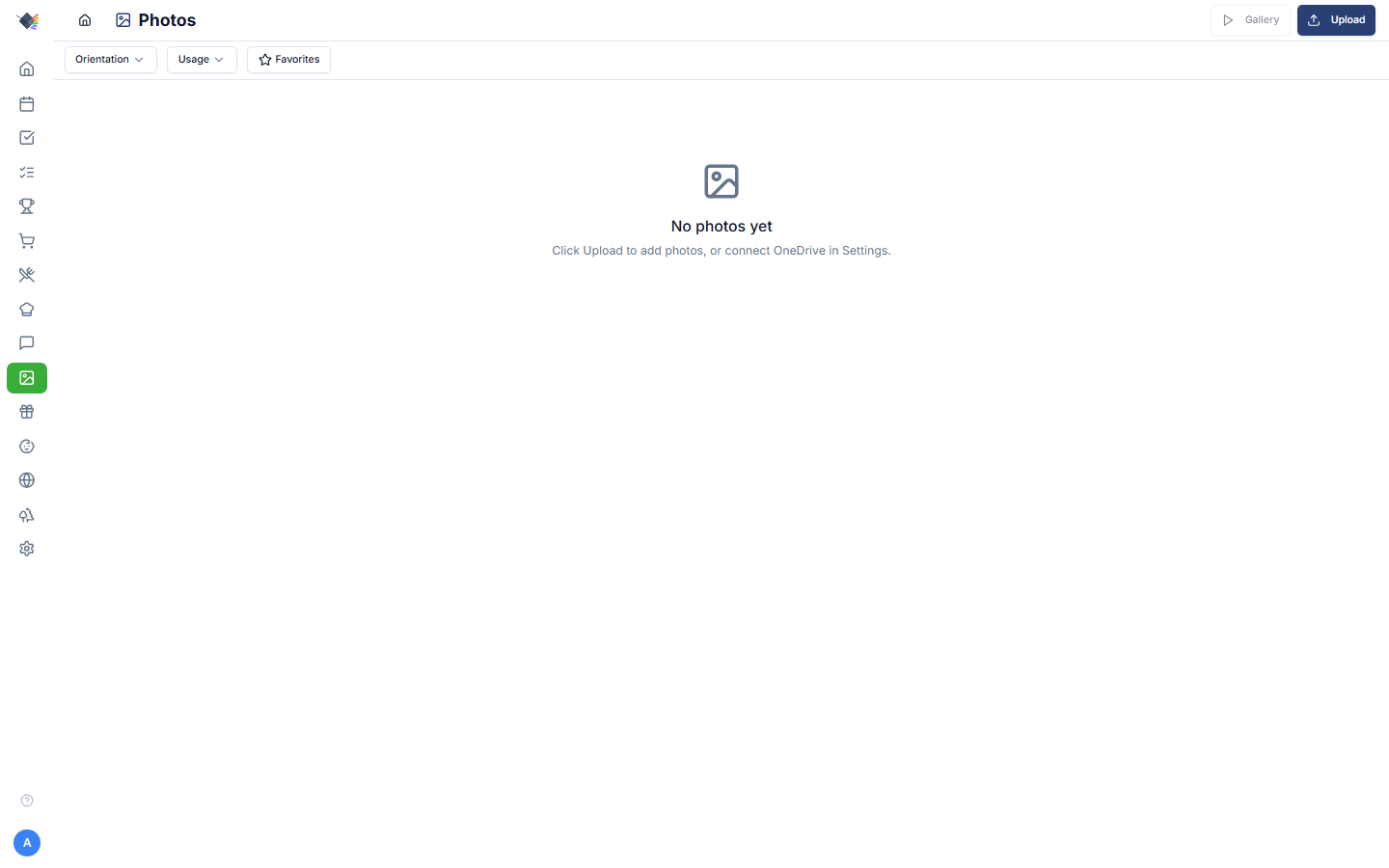
Photo gallery, screensaver feed, wallpaper source, and the GPS-linked photo strip on the Travel Map. Backed by local uploads plus OneDrive sync (with a folder picker so you don't have to sync the whole drive).
Sources
Two types of photo sources:
Local upload
Photos uploaded directly through Prism's UI live in data/photos/ on the host (or wherever you've mapped the volume). Good for family photos you've already curated.
Upload via Photos → Add photos: drag-and-drop or file picker, multiple files at once. Supported formats: JPEG, PNG, HEIC (converted to JPEG), WebP.
Behind the scenes, sharp pipeline:
- EXIF rotation applied.
- Resize to max 2400×2400 (preserves aspect ratio).
- Re-encoded as JPEG quality 85.
- ≤10 MB cap per file.
The original-resolution file isn't kept after processing. The resized version is the canonical asset. If you want full-res archival, keep your originals elsewhere.
OneDrive sync
Connect Microsoft in Settings → Integrations → Microsoft. Then in Settings → Photos → OneDrive:
- Folder picker: browse your OneDrive tree and pick which folder to sync from. Defaults to nothing (you must pick). Avoids the trap of accidentally syncing your entire drive.
The sync downloads new files into data/photos/onedrive/. EXIF metadata is preserved. Auto-sync runs automatically about every 30 minutes. Drop a photo into the folder and it appears on the dashboard within the half hour, no manual trigger needed. (Hit the manual sync button in settings if you want it immediately.)
Orientation and resolution aren't sync-time filters: every photo in the picked folder syncs. Orientation allow-lists and the low-resolution warning are display-side settings under Settings → Photos; see Filtering for the Below HD filter.
You can have multiple OneDrive sources, useful if you want one folder for "family slideshow" and another for "wallpaper-only".
Getting photos into the folder from your iPhone
OneDrive backs up your whole camera roll to one big folder, but doesn't map iOS albums or favorites to a specific folder. So you populate the Prism folder one of three ways:
- iOS Shortcut (recommended): a one-tap "Add to Prism" action on the Photos share sheet. Build it once:
- Open the Shortcuts app → + → name it "Add to Prism"
- Add action Save File (from the Documents category)
- Set the destination to your OneDrive Prism folder, turn off "Ask Where to Save"
- In the shortcut's settings (ⓘ), enable Show in Share Sheet and set "Accepted Types" to Images
- Now: in Photos, select any photos → Share → Add to Prism. They upload straight to the folder.
- OneDrive app: open OneDrive, select photos in your Camera Roll backup → Copy to → Prism folder.
- From a computer: drag files into the folder in the OneDrive web UI or synced desktop folder.
Why not iCloud Shared Albums? Apple migrated public share URLs to a CloudKit-only backend that has no public API. See iCloud integration for the full story; OneDrive + the iOS Shortcut above is the workflow for iPhone users.
Cross-source dedup + priority
If you back up the same photos to more than one source (e.g. local uploads plus an OneDrive folder, or two OneDrive folders that overlap), Prism shows each photo once rather than twice. When the same shot is found in multiple sources:
- Photos are matched by capture time + dimensions (a cropped edit keeps the original timestamp but changes dimensions, so edits and originals both show; only true duplicates are collapsed).
- The copy from your preferred source wins. Order your sources in Settings → Photos with the ▲▼ controls, top of the list = preferred. Reordering takes effect immediately; no re-sync needed.
Example: rank "OneDrive: originals" above "OneDrive: web-optimized" and any photo in both folders serves from the originals folder while the smaller copy is suppressed from display.
GPS data
Each photo row stores latitude/longitude if the EXIF data has them. This powers the Travel Map's photo-linking feature: geotagged photos auto-link to nearby travel pins.
iOS strips GPS on share by default; toggle "Preserve location" in Photo settings or use AirDrop with location preserved to keep GPS data when sharing photos to OneDrive.
GPS backfill
For photos that synced before GPS linking was set up, Settings → Photos → Backfill GPS re-reads EXIF data from already-synced files and writes coordinates to the database. No re-download needed; it works on the local copies.
Gallery view
The Photos page is a paginated grid. Each thumbnail loads lazily. Click for the lightbox view:
- Full-resolution image.
- Arrow keys (or swipe on mobile) for next/previous.
- Tag for: usage toggles: add or remove the photo from Wallpaper, Gallery, and/or Screensaver (see Usage tags).
- Delete: removes the photo from Prism.
- A resolution-quality dot plus the photo's dimensions and orientation.
Filtering
- Orientation: show only landscape, portrait, or square.
- Usage: filter to photos tagged for Wallpaper, Gallery, or Screensaver.
- Favorites: show only photos flagged as favorites.
- Below HD: show only photos under 1920×1080 (handy for finding low-resolution shots that won't look good full-screen).
Bulk actions (desktop)
On desktop, tap Select to enter multi-select mode (hidden on mobile):
- Tap photos to select them, or use Select all to select the entire filtered library, not just the current page.
- Show in: bulk-add or remove the selected photos' Wallpaper / Gallery / Screensaver usage tags in one action.
- Remove from Prism: bulk-delete the selected photos from Prism. Source files (including OneDrive) are untouched; photos removed from a synced source stay removed rather than re-downloading on the next sync.
Resolution indicator
Each thumbnail (and the lightbox) shows a small resolution-quality dot compared against 1920×1080 (HD):
- Green: at or above HD.
- Yellow: at least 75% of HD.
- Red: low resolution.
Combined with the Below HD filter, this makes it easy to spot photos too small to look good as a full-screen wallpaper.
Usage tags
Rather than free-form labels, each photo carries usage tags that control where it can appear. Open a photo's lightbox and use the Tag for: row to toggle it into any combination of:
- Wallpaper: eligible to be shown as the dashboard background.
- Gallery: shown in the main Photos grid.
- Screensaver: included in the screensaver rotation.
A photo can carry any combination of these (or none). Usage tags double as gallery filters (see Filtering). There's also a Favorites filter for photos flagged as favorites.
Slideshow
Used by:
- Photo widget on the dashboard.
- Screensaver when active.
- Away mode photo display.
Each surface configures its own:
- Rotation interval: how often to cycle (defaults vary by surface).
- Source filter: which photo sources to draw from.
- Usage filter: draw only from photos tagged for that surface (Wallpaper / Gallery / Screensaver).
- Orientation filter: only show landscape (good for full-screen displays) or only portrait, etc.
Photos are pre-fetched and rotated client-side. No server round-trip per rotation.
Pinned photos
Override the slideshow for specific surfaces with a single static image. Pinning is set in Settings → Photos (the Pinned Photos card), not from the lightbox:
- Pinned wallpaper: the dashboard renders this one static image behind widgets instead of cycling.
- Pinned screensaver: same idea for screensaver mode.
Useful for "we want THIS family portrait as the dashboard background, not random photos cycling."
Pinning is per-device: the pinned photo is stored in that browser's local storage, so each display can pin its own wallpaper/screensaver (or none). You can pin one photo as wallpaper and let the screensaver still cycle through the rest.
To change or clear a pin, use the same Pinned Photos card in Settings → Photos.
Travel Map photo linking
Geotagged photos auto-link to nearby travel pins via Haversine distance (default 50 km radius per pin). The pin's detail panel shows a photo strip of matched shots; tap any photo for the lightbox.
See the Travel Map guide for the full setup + how to tune per-pin radius.
Performance mode interaction
When Performance Mode is active (auto-detected on low-spec devices, or manual via Settings → Appearance):
- The Photo widget renders as a single static image (the first photo in the configured filter) instead of cycling.
- Slideshow rotation pauses on the screensaver in performance mode.
- The dashboard wallpaper still renders if pinned (no per-frame work needed for a static image).
Saves render cycles + bandwidth on a Raspberry Pi or older tablet.
Caching
Each synced OneDrive photo is downloaded once and stored locally. A photos-cache Docker volume (default 1 GB-ish; size depends on your photo library) holds the cached files.
Immich photos are not copied as iPhone originals. Lightbox, screensaver, and wallpaper request Immich's web-safe fullsize (or preview) JPEG/WebP so Firefox and other browsers that cannot decode HEIC still show the picture. Cached HEIC from an older Prism version is ignored.
If you delete the volume, the next sync re-downloads everything. The DB rows survive (they reference the path), so tags + GPS data + pin states are preserved.
Privacy
- Photo files live on YOUR Prism host. Not on Anthropic, Microsoft (after sync), Cloudflare, or anywhere else.
- The PWA caches photo thumbnails for offline display (small, low-impact).
- The OneDrive sync direction is OneDrive → Prism only. Prism never writes photos back to OneDrive, never modifies files on the OneDrive side, never deletes from OneDrive.
- If you disconnect Microsoft in Settings → Integrations, the sync stops. Already-synced files stay in your
data/photos/directory (and the DB). You can delete them if you want.
Use cases
Kitchen dashboard family slideshow
Sync a "Best of 2025" folder from OneDrive. Configure the screensaver to cycle through it with a 30-second rotation interval. Now the kitchen display rotates through favorites all day.
Travel scrapbook
Geotag your phone photos (iOS: keep "Preserve location" on when sharing to OneDrive). Sync the travel folder. Open the Travel Map. Pins for places you've been now show photo strips of shots taken nearby.
Static dashboard wallpaper
Take a single family portrait, upload via Photos → Add. In Settings → Photos, pin it as the wallpaper on the Pinned Photos card. Dashboard now uses that photo as the background. Adjust widget translucency to taste.
Babysitter mode background
Babysitter mode uses the screensaver photo source by default, so it draws from photos tagged for Screensaver. Curate that set (via each photo's lightbox Tag for: row) to keep the babysitter view family-friendly.
Troubleshooting
Photos not showing up after OneDrive sync
- Settings → Photos → OneDrive. Is the folder picker pointing at the right folder?
- Tap Sync now.
- Check the sync log on the Photos settings page. Any errors?
- Every photo in the picked folder syncs (nothing is skipped by size); if a photo is missing, confirm it's actually in that folder.
Slideshow shows a thumbnail-quality image, not full
The screensaver intentionally uses the resized cached version for performance. If you want full-resolution, open the lightbox.
Wallpaper photo loads slowly
Pinned-wallpaper photos are served full-resolution. On slow connections or large files, you may see a brief load. The PWA caches it after first load.
GPS coordinates wrong on a photo
EXIF GPS is whatever the camera recorded. If the GPS lock was poor (indoor shot, basement), the coords might be off by hundreds of meters. Manually edit the photo's latitude/longitude in the database if precision matters for Travel Map linking.
Photos rotation showing the same image repeatedly
The slideshow shuffles within the filter set. If your filter is too narrow (e.g. only 3 photos), repetition is expected. Broaden the filter or untag photos to grow the pool.
"Backfill GPS" finds no new GPS data
Either: - The photos genuinely don't have EXIF GPS (most common: iOS strips it on share by default). - The photos were synced via OneDrive's "stripped metadata" mode (some OneDrive Photos settings strip GPS).
Verify by opening a photo's file properties directly and checking the EXIF data.
"Out of disk space" during sync
The photo cache volume is filling. Either:
- Increase the volume size in docker-compose.yml.
- Narrow the OneDrive folder being synced to a smaller subset.
- Delete the photos-cache volume and re-sync only what you need.
iOS uploads come out rotated
EXIF rotation should be auto-applied by the sharp pipeline. If a photo appears rotated, it usually means EXIF orientation was missing or 1 (no rotation needed) but the underlying pixels were rotated. Edit the photo on your phone before uploading.