Calendar
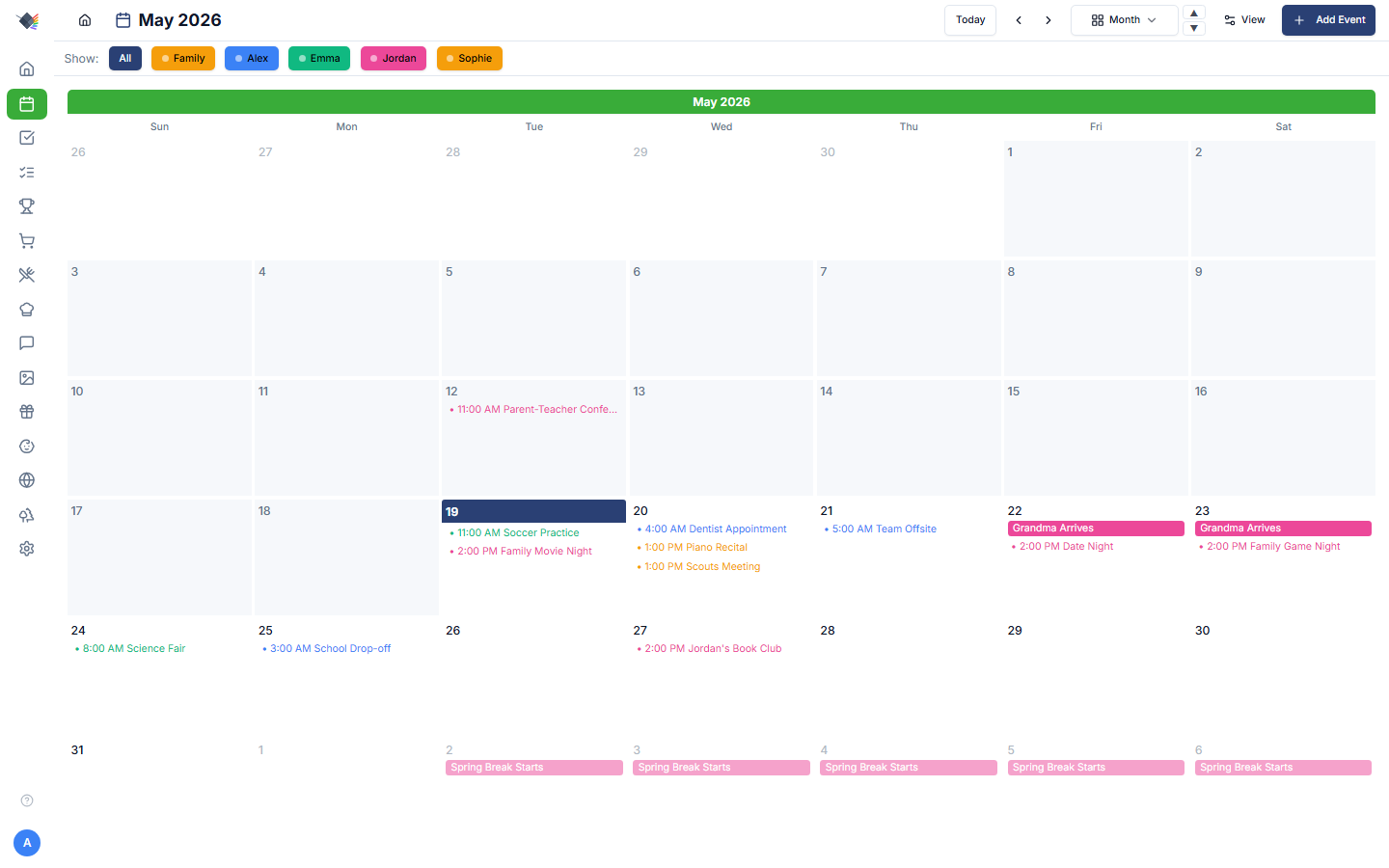
The calendar brings every family member's schedule together with meals, chores, and tasks in one place. It supports Google Calendar OAuth (read+write), iCal subscriptions (read-only), ten view modes, drag-and-drop, click-to-edit from the dashboard widget, and a server-side sync cron that keeps events current even when nobody's looking at the dashboard.
Setting up calendar sources
Personal & Family calendars (no integration needed)
You don't have to connect anything to start using the calendar. On a fresh install every family member automatically gets their own personal calendar, plus there's a single shared Family calendar for household-wide events. Add and assign events to any of these right away. Connected accounts (below) just layer additional sources on top.
Google Calendar (OAuth, bidirectional)
Settings → Integrations → Google → Connect.
OAuth grants Prism read+write access to your Google Calendars. You can create, edit, drag, and delete events in Prism, and changes push back to Google Calendar within seconds. Each individual calendar in your Google account (personal, family-shared, work, etc.) shows up in the Manage overlay on the Calendar page where you decide which to display.
The connection covers Calendar specifically. If you also want Google Tasks sync, that's configured per-list inside the Google provider card on the same Settings → Integrations page.
Google Calendar without a public URL (OAuth Playground)
Settings → Integrations → Google → Connect without a public URL (advanced).
The normal Connect button needs a public HTTPS address, because Google refuses to register a private/LAN redirect URI (e.g. http://homeassistant.local:8123/… or http://192.168.x.x:3000/…) — you'll see "must end with a public top-level domain." If Prism only runs on your LAN (Home Assistant add-on, bare Docker) and you'd rather not put it behind a public URL, you can still get full read+write by generating a refresh token yourself with Google's OAuth Playground and pasting it into Prism. The sign-in stays entirely on Google's own domain — nothing routes through a third party.
Do everything signed into a single Google account — the one whose calendars you want — ideally in a private/incognito window, so you never mix up accounts. Account confusion (the project under one account, the calendars under another) is the #1 cause of setup trouble here.
- In the Google Cloud Console, create a project, then enable the Google Calendar API.
- Configure the OAuth consent screen (User type External; fill in the app name and your support/developer email).
- Publish the app to Production. This is the important one — in Testing mode Google expires refresh tokens after 7 days; publishing removes that limit. Because you own the project, you can click through the one-time "Google hasn't verified this app" notice (Advanced → proceed) — no formal verification is needed for your own use of the Calendar scope.
- Create an OAuth Client ID of type Web application. Under Authorized redirect URIs, add exactly
https://developers.google.com/oauthplayground. Copy the Client ID and Client Secret — the secret is shown only once. - Open the OAuth 2.0 Playground → gear icon → tick "Use your own OAuth credentials" → paste that Client ID and Secret.
- In Step 1, enter the scope
https://www.googleapis.com/auth/calendar→ Authorize APIs → sign in → Advanced → proceed → Allow. - In Step 2, click Exchange authorization code for tokens and copy the Refresh token (starts with
1//). - In Prism, open Settings → Integrations → Google → "Connect without a public URL (advanced)" and paste the Client ID, Client Secret, and Refresh token. Prism validates them with Google and imports your calendars with full read+write.
Troubleshooting:
- "Google rejected the client ID / secret pair" — the Client ID and Secret don't match, or the secret was rotated. Open your client in the Console, generate a fresh secret (shown only once), and use it in both the Playground and Prism.
- "Google rejected the refresh token" — it's expired, revoked, or was minted with a different client than the one you pasted. Generate a fresh token in the Playground using the exact same Client ID + Secret, in one pass, and paste it right away. Make sure you copied the Refresh token (
1//…), not the Access token (ya29.…). - The Playground's Exchange returns no refresh token — you've already granted the app once. Revoke it at myaccount.google.com/permissions, then Authorize again for a fresh consent.
- The project doesn't appear in the Console — you're signed into the wrong Google account. The project, client, consent screen, and Playground authorization must all be the same account.
To revoke Prism's access entirely, go to Google Account → Security → Third-party access.
iCal subscriptions (read-only)
Open the Calendar page → Manage → Subscribe to a calendar → paste URL.
For any calendar published as an .ics URL (school calendars, sports leagues, holiday feeds, your spouse's outlook.live.com calendar), paste the URL and Prism subscribes. Events sync periodically and appear alongside Google events. iCal sources are read-only by definition (no write endpoint exists for these feeds), so the dashboard treats them like any other source for display but won't offer edit affordances on their events.
Apple Calendar / iCloud (read-only via the iCal feed)
iCloud doesn't speak OAuth or expose a public REST API, so Prism rides the same iCal-subscription path. Apple makes a webcal:// URL available for any calendar you mark as Public. From a Mac:
- Open Calendar.app, right-click the calendar in the sidebar → Share Calendar.
- Tick Public Calendar: a URL appears underneath.
- Click the share button next to the URL and Copy Link (it'll start with
webcal://). - In Prism: open the Calendar page → Manage → Subscribe to a calendar, paste the URL, give it a name, click Add.
From iCloud.com it's the same idea: Calendar → ⓘ next to the calendar → Public Calendar → Copy Link.
Caveats: this is a one-way feed (changes you make in Prism don't push back to iCloud: there's no UI to "edit" these events because the feed is read-only), and the calendar has to be marked Public on iCloud's side.
Apple iCloud (CalDAV, private calendars + Reminders), alpha
For calendars you don't want to mark Public, or to sync Reminders as tasks, Prism supports iCloud over CalDAV. This is the same protocol the macOS/iOS Calendar app uses.
- Generate an app-specific password at appleid.apple.com → Sign-In and Security → App-Specific Passwords → Generate.
- In Prism: Settings → Integrations → Apple iCloud / CalDAV → Connect.
- Enter:
- Server URL:
https://caldav.icloud.com - Username: your iCloud email
- Password: the app-specific password from step 1 (not your Apple ID password)
- Click Test Connection, then Find Calendars, pick which calendars and Reminders lists to sync, and Connect.
The same flow works for Nextcloud (https://your-server/remote.php/dav), Radicale, Baikal (https://your-server/dav.php), and Synology Calendar (https://your-nas:5001/caldav/).
Caveats: this path is read-only for create/edit: events and tasks pulled from CalDAV appear in the dashboard but can't be created or edited from Prism. There is one exception: deleting a single (non-recurring) synced event in Prism now removes it from the source server too (iCloud/Nextcloud/etc.), so treat that delete as destructive upstream. Recurring series still delete locally only. App-specific passwords are stored encrypted in the Prism database and never leave your server. Apple Reminders sync into Prism's Tasks list with the same priorities and due dates the iOS app uses.
Wondering what else you can pull from iCloud (Reminders, Notes, Photos, Find My)? See the iCloud integration overview. Short answer: calendars and contacts work, nothing else does, and there's a structural reason.
Per-calendar customization
In the Manage overlay on the Calendar page, each source supports:
- Enable/disable: toggle off without disconnecting. Disabled calendars don't appear anywhere in the UI.
- Assign to a family member: links the calendar to a person so its events appear in that person's column on Day/List views. Mark a calendar as Family if it's a shared household calendar.
- Display name: override the Google/iCal name (e.g. "Mike's Work" → "Work").
- Color: override the source's default color.
- Show in Add Event modal: uncheck for subscription / read-only calendars so they don't appear as creation targets.
Server-side sync
A 10-minute background cron job keeps Google + iCal events in sync without depending on anyone having the dashboard open. The default sync window is −90 days to +365 days: past three months stay populated for historic views, and the next school year fits comfortably ahead.
Events outside the window are not deleted. Once an event is synced into Prism's database, it remains there permanently. The delete-on-remove pass only operates inside the window, so manually shrinking the window won't lose your archive.
Review before deleting
Sync never silently removes events. When an event that used to exist disappears from its source, Prism holds the removal instead of applying it and surfaces a Review N badge on the calendar. Open it and decide per event: Keep (it stays in Prism) or Delete (it's removed). Applying a deletion requires delete permission. Adds and updates from the source still apply automatically. Only removals wait for your review.
When sync stops
A connection can expire or be revoked — a password change, a grant withdrawn from the provider's own security page, or an OAuth consent screen still in Testing, which caps tokens at seven days. When that happens sync stops, and a calendar that has stopped syncing looks no different from a calendar with nothing on it.
So Prism says so. A Sync paused badge appears on the Calendar page next to Review N, and a matching line appears on the Calendar dashboard widget. Either one opens the Manage overlay, where the Reconnect button restores the connection for every calendar on that account at once.
The badge deliberately says very little: how many calendars are affected, and which service when they are all on the same one. It never names a calendar or an account, because a wall display is read by whoever walks past it. It also stays off the screensaver.
Set PRISM_DISABLE_CALENDAR_CRON=true in your .env to fall back to user-triggered syncs only (e.g. on a low-power device where you don't want background work). Manual sync is always available from the Manage overlay on the Calendar page (Sync).
Views
Both the calendar subpage and the dashboard widget expose the same set of ten views:
| View | Best for |
|---|---|
| Agenda | Upcoming-events list. Default view on mobile. |
| Day | Hourly breakdown with side-by-side calendar columns. |
| List | Vertical week view: each day stacks its events. Pairs well with the notes column. |
| Schedule | Week shown as one tall vertical column. Good for narrow displays. |
| 1W | Single week, 7-day grid with hourly rows. |
| 2W / 3W / 4W | Multi-week grids: 2 / 3 / 4 weeks visible at once. |
| Month | Standard calendar grid (6-week rendered span). |
| 3 Months | Three months side-by-side. Long-term planning. |
The view dropdown has ▲▼ triangles for one-click cycling. Multi-week navigation advances/retreats by weekCount (so 4W view's "next" jumps 4 weeks ahead, not 1).
On phones, calendar views collapse to Agenda only: no view switcher, no chevrons. Header reads "Upcoming Events."
Multi-day events (trips, holidays, anything spanning more than one day) draw as a single continuous bar across the days they cover in the Month, multi-week, and week grids, rather than repeating as a separate chip on each day. The bar clips with a chevron where it crosses a week or month boundary and continues on the next row, and events that have already finished are dimmed. All-day events are placed by calendar date, so they stay on the correct day regardless of the display timezone.
Display modes: inline vs cards
The View Options gear (next to the view dropdown) lets you switch between two ways of laying out events within each day cell:
- Inline: compact rows of event titles. Original look. Highest event density per cell.
- Cards: each day becomes a small card. The events lead the cell, and the day's chores, tasks, and meals are grouped in a delineated band pinned to the bottom (meals last), so the schedule and the day's plan read as separate zones. A dynamic capacity probe respects your text size and viewport. Overflow folds into a "+N more" popover so nothing is silently clipped.
Cards mode is what unlocks drag-and-drop and overlays.
The toggle persists per surface: the calendar subpage and the dashboard CalendarWidget remember independently which display mode you prefer.
Drag-and-drop
When you're in cards mode, you can drag any of these between days:
- Events
- Meals
- Chores
- Tasks
Works on Day, List, Week, 1W-4W, Month, 3 Months, and Agenda. Works on the dashboard CalendarWidget too. The drag activates after 5px of pointer movement, so single taps still trigger click-to-edit on the same card.
If the API rejects the move (e.g. moving a recurring event instance is restricted), the error surfaces inline as a moveError chip on the source cell. No silent failures.
What gets preserved when you drag
- Tasks: the task's time-of-day stays (a 9am task on Tuesday dragged to Thursday is still 9am, not 23:59).
- Events: start/end times are preserved; only the date shifts.
- Meals + chores: these don't have specific times by default, so they just move to the new day.
Click-to-edit from the widget
Tasks, chores, and meals shown on the dashboard CalendarWidget are clickable. Tapping any of them opens the same edit modal the calendar subpage uses. The modals lazy-load so the dashboard's first paint isn't taxed.
This means you can do most calendar interactions without leaving the dashboard: edit a chore, drag a meal, click an event for details, all without navigating to /calendar.
View Options menu
The gear next to the view dropdown opens View Options. Available toggles depend on the active view:
- Hide weekends: multi-week views only (the only views that meaningfully respect weekends).
- Merge calendars: combine all events into one column on Day/List views instead of splitting by person.
- Show notes column: Day and Schedule views only. Renders the calendar-notes panel beside the events.
- Overlay toggles: show/hide events, meals, chores, and tasks independently. The badge on the View Options trigger flags when any toggle is non-default.
- Display mode: Inline / Cards (also reachable here, in addition to the per-view default).
- Reset to defaults: restores everything.
Settings persist to localStorage, separately for the subpage and the dashboard widget.
Calendar Groups & Columns
In Day and List views, events organize into columns by calendar group:
- The Family group always appears first (for shared/family-tagged calendars).
- Person columns appear after Family, in the order set by Settings → Family Members.
- Reorder family members to change the column order.
- Use the Merge / Split toggle (in View Options) to combine all events into a single column or separate by person.
Filter buttons at the top of the calendar let you show/hide specific calendar groups for the current view. Click All to show everything.
Calendar Notes
Click the sticky note icon in the calendar header to open a notes panel beside Day or List views. Notes are:
- Day-tied: anchored to a specific calendar date.
- Family-shared: anyone in the family sees the same content; no per-user notes.
- Auto-saving: saves after 2 seconds of idle typing and on focus loss.
- Formatted: supports light Markdown via keyboard shortcuts.
Formatting shortcuts (while focused in a note):
- Ctrl+B Bold
- Ctrl+I Italic
- Ctrl+U Underline
- Ctrl+Shift+S Strikethrough
- Ctrl+Shift+L Bullet list (type
-at the start of a line for the same effect)
Notes are read-only when not logged in (so the screensaver / babysitter view can show them without exposing edits).
Hidden Hours
Hide a time range from Day/Schedule/Week views so most of the visible space goes to hours your family actually uses. Configure the range in the Manage overlay on the Calendar page (Calendar Hours):
- Set start hour (e.g. midnight)
- Set end hour (e.g. 6 AM)
Toggle visibility with the clock button in calendar views. It dims when active. The remaining visible hours auto-resize to fill the panel; you don't get tiny event blocks scrunched into a tall column.
Hiding an event
A parent can hide an event without deleting it: click the event and tick Hide in Prism. It disappears from every view, widget and voice answer at once, and a toast offers Undo. The event stays in its source calendar, and a later sync does not bring it back.
On an occurrence of a recurring event from Google or an iCal feed, ticking the box asks This event or Every event in the series. Hiding the series also hides occurrences that sync in later. Events from a CalDAV calendar can only be hidden one at a time for now.
Hidden events and series are listed under Hidden events in the Manage overlay on the Calendar page (Settings → Calendars), with Unhide to show one again.
Hide is different from Delete, which removes the event from Prism and, for Google and single CalDAV events, from the source calendar too.
Color coding
Events inherit their color from the calendar source they belong to. When calendars are assigned to family members, each person's events show in their column with the calendar's color. Override per-calendar in the Manage overlay on the Calendar page.
Meals rendered on the calendar carry a small utensils icon before the title, so they read as distinct from ordinary events at a glance.
Cross-calendar events (e.g. the same event in your Google personal calendar and the Family Google calendar) are deduplicated by groupId at render time, so you don't see ghost duplicates across columns.
Adding events
Click Add Event in the calendar header (or on the CalendarWidget). The modal includes:
- Title (required)
- Calendar: picker filtered to calendars marked "Show in Add Event modal".
- Color: preset palette + your profile color.
- Description
- Location
- Start / End time or All day toggle.
- Recurrence: None, Daily, Every weekday, Weekly, Monthly, Yearly (writes to Google Calendar's RRULE format if syncing to Google).
Subscription / read-only calendars are auto-hidden from the picker.
Mobile behavior
- Calendar shows the Agenda view only on phone viewports: list of upcoming events, swipe to dismiss.
- View switcher hidden.
- Header simplified to "Upcoming Events."
- Swipe left/right to navigate periods.
This is intentional: full grid views don't fit comfortably on a phone, and the agenda is what people actually want when checking on the go.
Troubleshooting
Events not showing
- Open the Calendar page → Manage. Is the calendar enabled?
- Tap Sync to force a refresh.
- Check Settings → Integrations. Is Google still connected? (OAuth tokens can expire if revoked from the Google side.)
- The server-side sync cron also runs every 10 minutes. Wait one cycle.
- Check Hidden events in the Manage overlay. A hidden event stays hidden after every sync.
Events appearing in the wrong person's column
Check the calendar's assignment in the Manage overlay on the Calendar page. Cross-calendar events (same event in personal + Family calendars) dedupe by groupId. If you're seeing duplicates, file an issue with the calendar names.
"Sync paused" badge won't clear
Reconnecting clears the flag as soon as Google redirects you back — but only for the calendars visible to that account. If you sync calendars from two Google accounts, reconnecting one leaves the other flagged, and the badge stays up with a smaller count. Reconnect each account.
If it clears and then returns within a week, the grant is being revoked rather than expiring: check whether the Google Cloud project's OAuth consent screen is still in Testing status, which caps refresh tokens at seven days no matter how much you use them. Publishing the consent screen removes that cap.
Sync cron not running
PRISM_DISABLE_CALENDAR_CRON set to true in .env? That's the kill switch. Otherwise the cron runs in instrumentation.ts on app startup and tries every 10 minutes.
Drag-and-drop not working
Drag-and-drop requires cards display mode. Switch via the View Options gear. Also: hold a chore/meal/task for ~5px of movement before dragging; a quick click triggers the edit modal instead.
"Failed to move" error chip
The API rejected the move. Most common cause: trying to drag a recurring event instance to a different day (Google Calendar's API restrictions). Move the source event itself or detach the instance first.
Hidden hours showing the wrong range
Hours are configured in 24-hour format (e.g. 0 to 6 for midnight-to-6am). Check the Manage overlay on the Calendar page (Calendar Hours) and re-save if needed.
Forecast day-of-week labels are off
This was a TZ bug in older versions: events would show on the wrong day for users in negative-UTC zones when an event crossed midnight UTC. Fixed in v1.7. If you still see it, hard-reload the PWA to clear cached chunks.